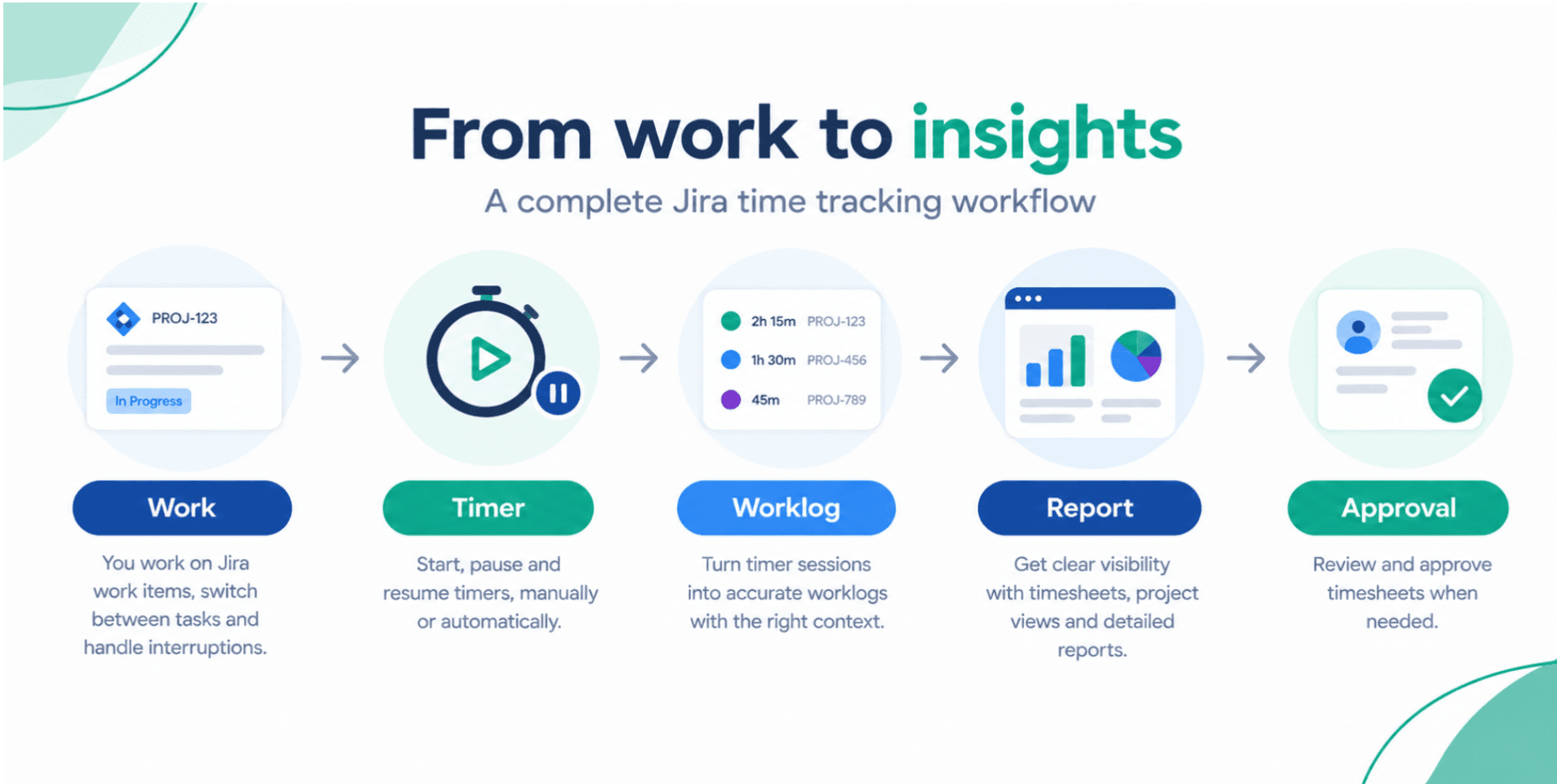
From Raw Worklogs to Real Insights: Building Better Jira Reports from Timesheets
Jira time tracking data is only useful if you can turn it into clear, actionable reports. This guide shows you how to transform Jira timesheets into reporting solutions that answer real questions about effort, cost, and delivery performance.
Timesheet Tracking for Jira

Jira already stores rich time tracking data, but the real value comes when you can answer questions quickly: Where did the team spend time? Which clients are profitable? Which projects are slipping?
Using Timesheet Tracking for Jira, you can turn raw worklogs into Jira reports that give precise project insights in minutes instead of hours in spreadsheets.
Start with the right time tracking structure
Accurate reporting starts with consistent inputs.
- Standardize work attributes : Configure work attributes (for example: _Billable / Non‑billable, Client, Activity Type_) so every worklog carries the metadata you need for later analysis. See the Work Attributes feature for ideas.
- Align with how you bill and plan : If you invoice by client and project, make those explicit attributes. If you track internal initiatives, add categories like _Support_, _Maintenance_, _R\&D_.
- Guide your team : Document a short "how to log time" guideline in Confluence and link it from your Jira project sidebar. Consistent habits mean cleaner data and clearer reports.
Build actionable Jira time reports
With structure in place, move to reporting solutions.
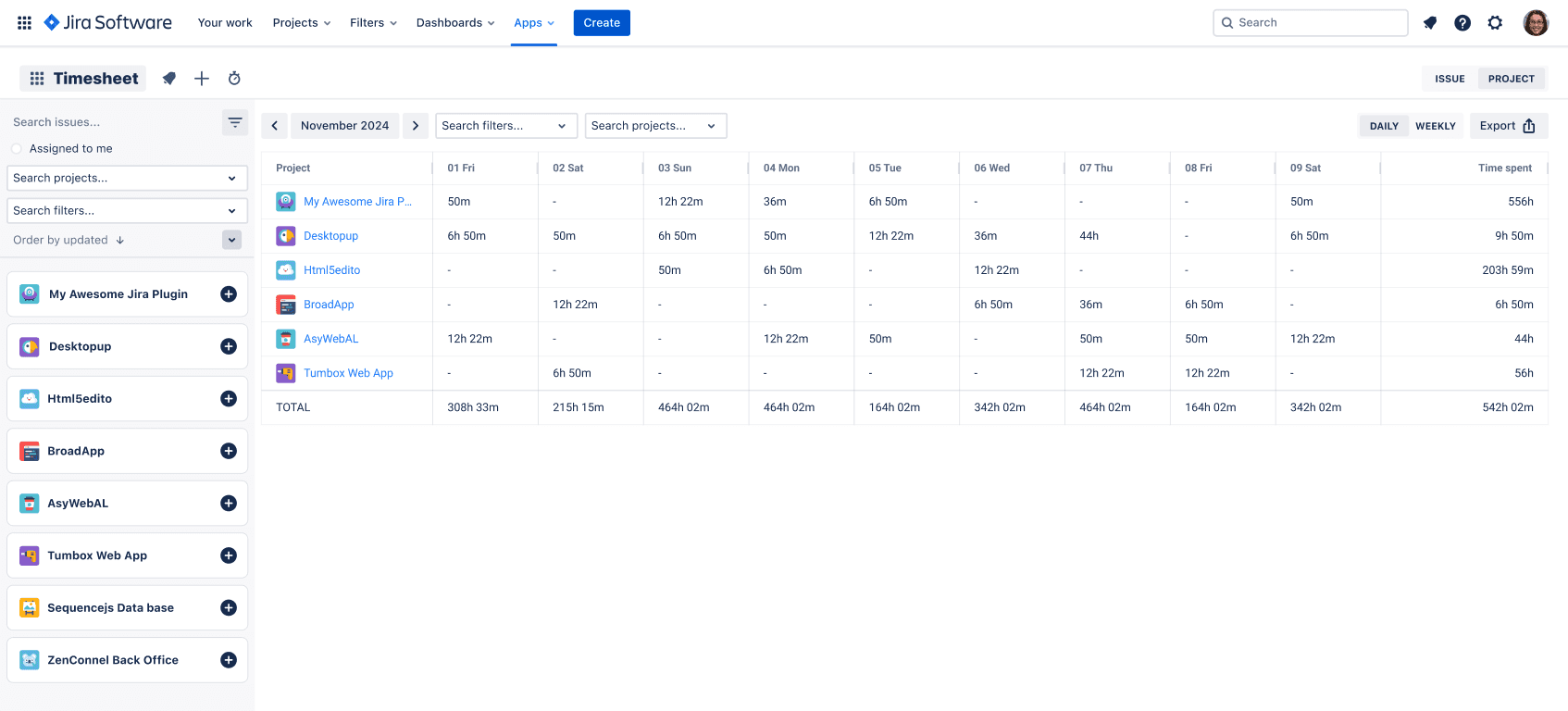
- Use Timesheets for fast overviews. The Timesheets view gives you effort by user, project, and issue across any date range. This is perfect for:
* Weekly team load reviews
* Verifying timesheets before payroll
* Spotting over‑allocated people
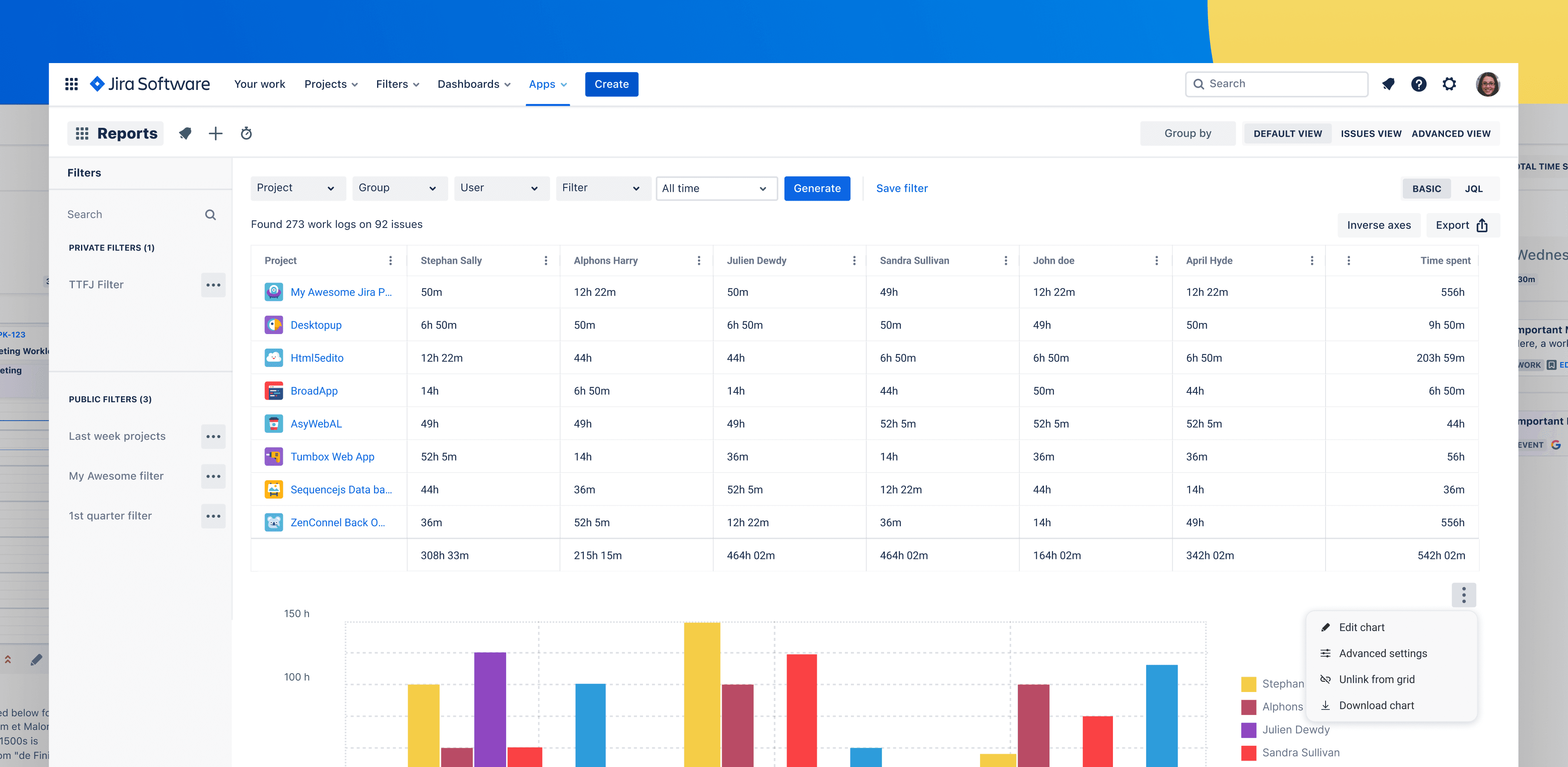
- Switch to Reports for deeper analysis. The Reports module lets you group by user, project, work attribute, or issue and filter on date ranges, teams, or JQL. Typical Jira reports you can build in seconds:
Billable vs non‑billable hours per client* for invoicing
Time by Epic and Status* to see where work gets stuck
Utilization by role* to inform hiring and resource planning
Turn data analysis into repeatable routines
Project managers don’t need more clicks, they need repeatable views.
- Save report configurations. Once you’ve tuned a report (filters, grouping, columns), save it as a preset. Use names like “Client X – Monthly Billing” or “Team Alpha – Sprint Review” so everyone recognizes the purpose.
- Standardize review cadences
* Monday: effort last week vs sprint commitment
* Mid‑month: billable hours per client for forecasting
* Month‑end: project margin review using billable vs internal time
- Export when needed
Timesheet Tracking for Jira supports export, but try to keep analysis in one place. The more stakeholders rely on shared Jira reports, the less time you spend reconciling spreadsheets.
Use calendar and timeline for context
Numbers alone don’t always tell the story.
- The Calendar view helps you compare planned events with actual worklogs, ideal for debugging over‑ or under‑reported days.
- The Timeline view shows how work spread during a period, which helps in retrospectives when you ask "why did this sprint feel chaotic?".
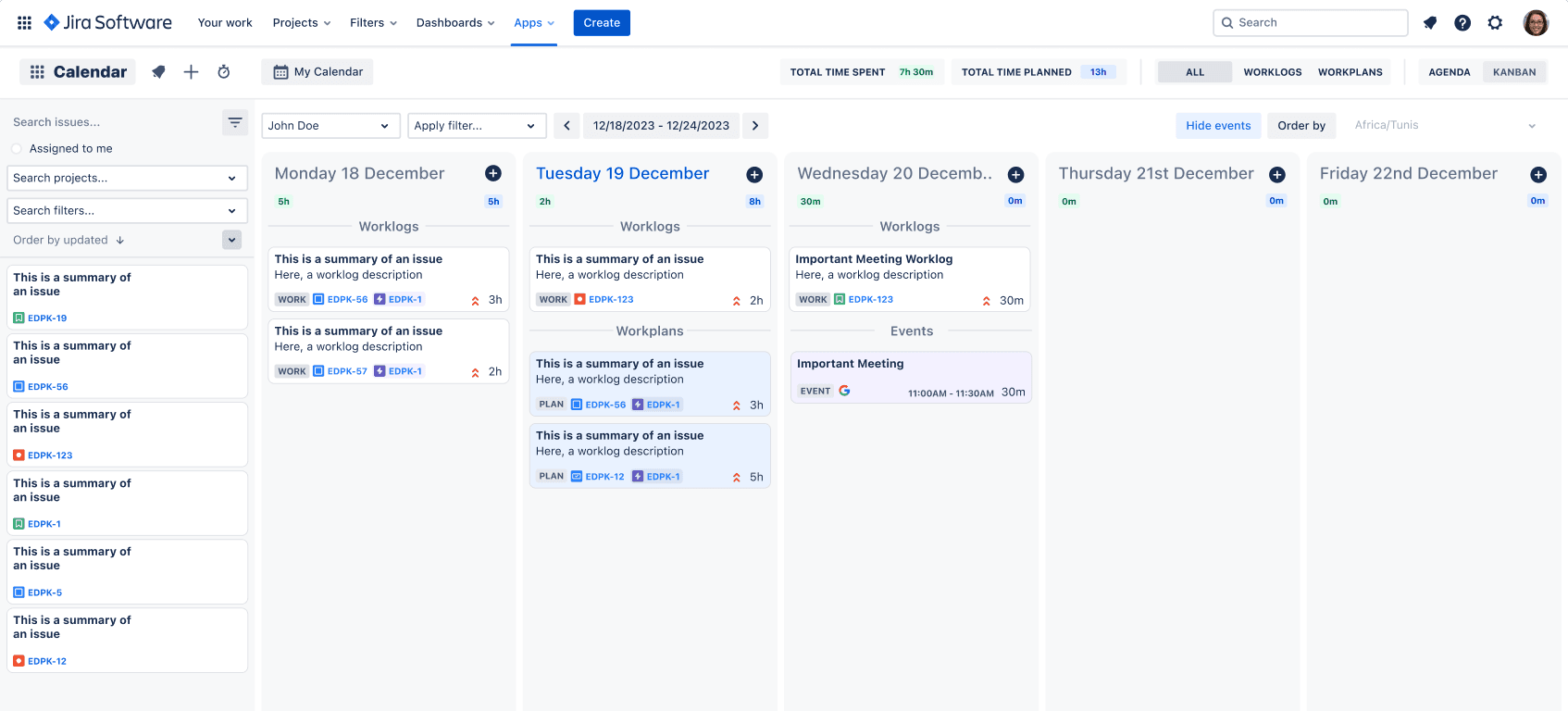
If you combine structured time tracking, targeted Jira reports, and a few consistent review rituals, your timesheets turn into a reliable source of project insights instead of an administrative chore.
Ready to track time in Jira?
Start your free 30-day trial of Timesheet Tracking on the Atlassian Marketplace.