Using Core Jira Features to Boost Team Productivity (Backed by Better Time Tracking)
Jira already has powerful features for boards, workflows, and reporting, but teams often miss the productivity gains hiding in plain sight. This guide shows how to combine core Jira features with dedicated time tracking to improve focus, accountability, and delivery speed.
Timesheet Tracking for Jira

Jira already gives your team a rich toolset for project management. The gap usually isn't features, it's how they're configured and connected to time tracking and reporting.
This guide walks through practical ways to use core Jira features together with Timesheet Tracking for Jira to improve team productivity, accountability, and billing accuracy.
1. Start With a Workflow That Matches How You Actually Work
If your workflow doesn't reflect reality, productivity drops and time tracking data becomes noisy.
Map your real process to Jira statuses
Sit down with your team and list the actual steps a task moves through. For example in a Scrum team:
To DoSelected for DevelopmentIn ProgressIn ReviewReady for QADone
Then configure your Jira workflow to match this path instead of keeping the default simplified workflow.
Why this helps team productivity:
- Everyone understands where work sits and what's blocking it.
- Cycle time reports and burndown charts become meaningful.
- Time tracking by status (via reports) shows where time is lost, for example in
In Review.
Add transitions that drive better time tracking
You can use transition screens or post functions to nudge better logging habits. For instance:
- When moving an issue to
In Review, show a field reminding users to start or stop a timer. - When moving to
Done, include a field for verifying the remaining estimate is zero.
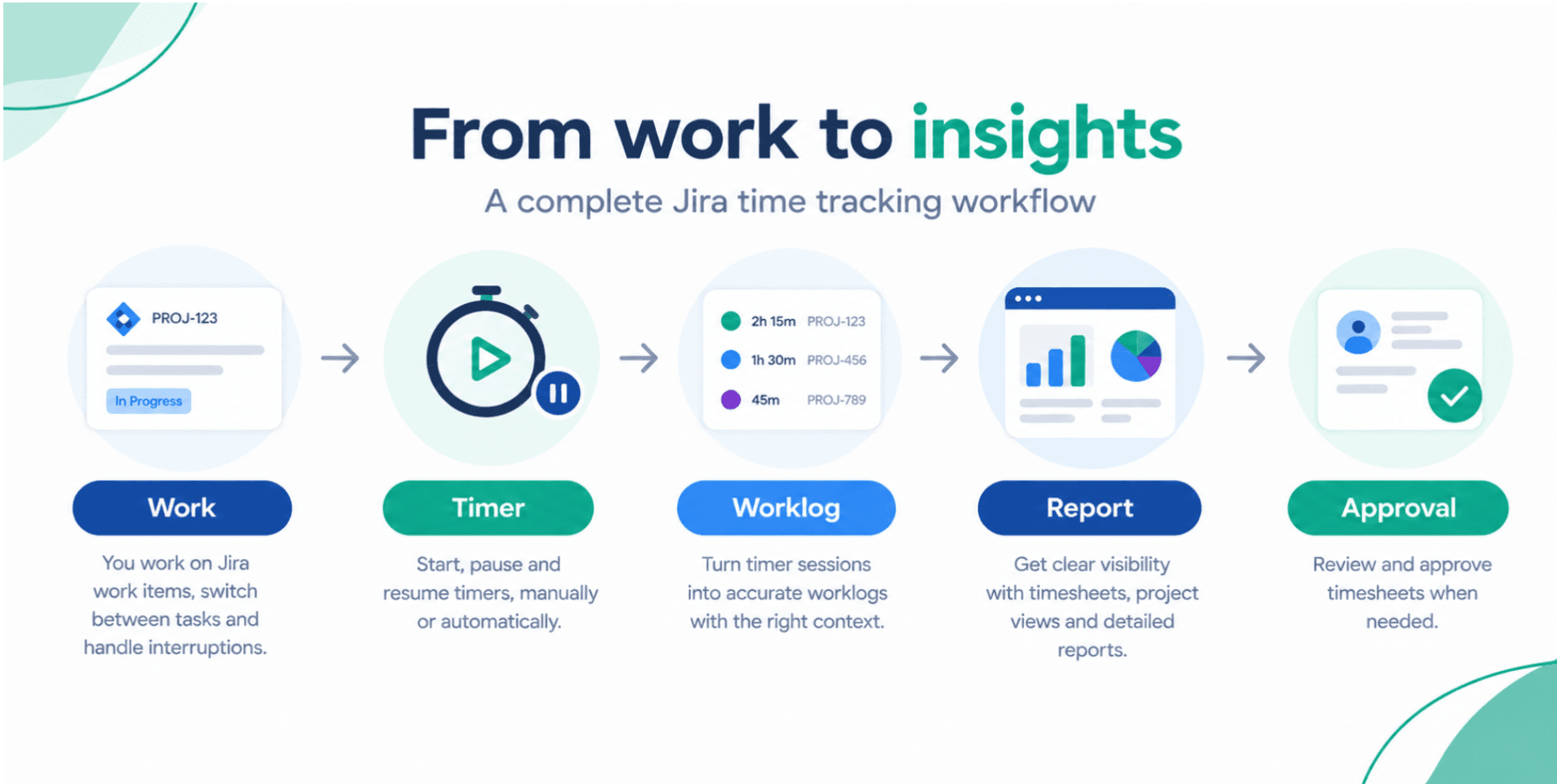
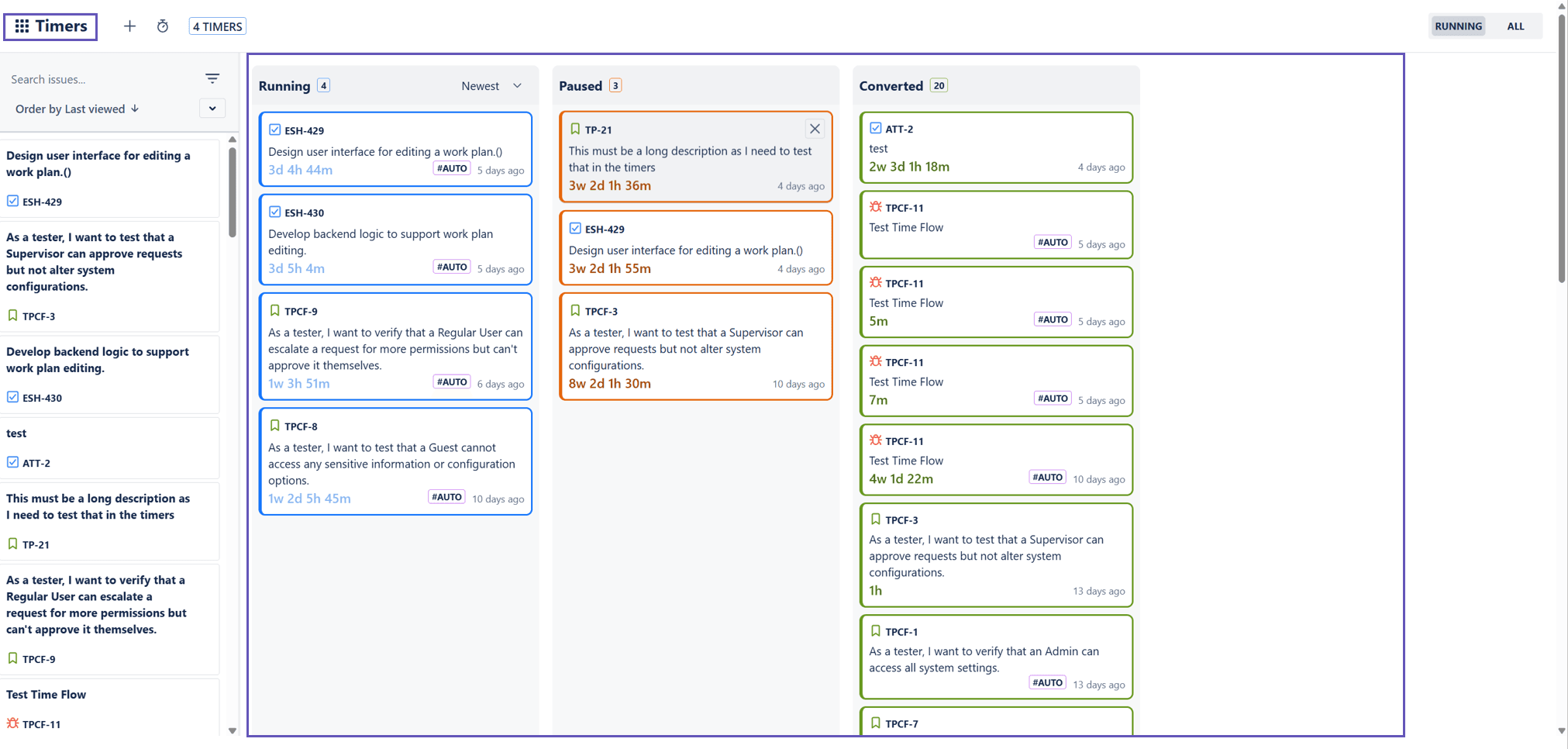
With Timesheet Tracking for Jira, your team can use the Timer to start tracking as soon as they transition to In Progress, then stop when moving out of that status.
Simple working agreement:
- Start Timer when moving to "In Progress".
- Stop Timer when moving to "In Review" or "Done".
- Adjust worklog if pair programming or context switching.
2. Use Boards to Limit WIP and Focus the Team
Boards are where team productivity lives day‑to‑day. A few configuration tweaks go a long way.
Set Work In Progress (WIP) limits
On Kanban boards, configure WIP limits for key columns like In Progress and In Review.
- If
In Progresshas a WIP limit of 4 for a team of 5, you'll quickly see when people are starting too much work. - Combine this with time tracking per status to check if WIP violations correlate with overtime or context switching.
Timesheet Tracking for Jira helps here by showing in its Timesheets and Reports how many hours per sprint or per week were spent in each workflow state.
Use swimlanes for priority and service levels
Create swimlanes such as:
- "Expedite" for production incidents
- "Standard" for normal stories
- "Back-office" or "Internal" for non-billable work
Then use Work Attributes in Timesheet Tracking for Jira to capture billable vs non-billable or client codes per worklog. This gives you a cross-view:
- Jira swimlane shows priority of the item.
- Work attributes show how the time should be billed or reported.
3. Estimates, Original Time, and Time Tracking That Your Team Actually Uses
Estimation isn't just for Scrum ceremonies. Done right, it anchors your time tracking and reporting.
Decide: story points, hours, or both?
Many software teams use story points for forecasting and hours only for time tracking and invoicing.
A practical setup:
- Use
Story Pointsfor planning velocity and sprint capacity. - Use
Original Estimateand remaining estimate in hours on individual tasks. - Use Timesheet Tracking for Jira for actual worklogs and billable tracking.
This approach lets managers see:
- Planned effort vs actual hours at the issue level.
- Trend over sprints, visible in Jira reports and Timesheet Tracking's Reports module.
Make logging fast and visible
If logging time feels slow, people skip it. You then lose both productivity and billing accuracy.
A reliable workflow:
- Developers keep the Timesheet Tracking for Jira Timer widget visible during daily work.
- At the end of the day, they open the Timesheets view to review and adjust entries.
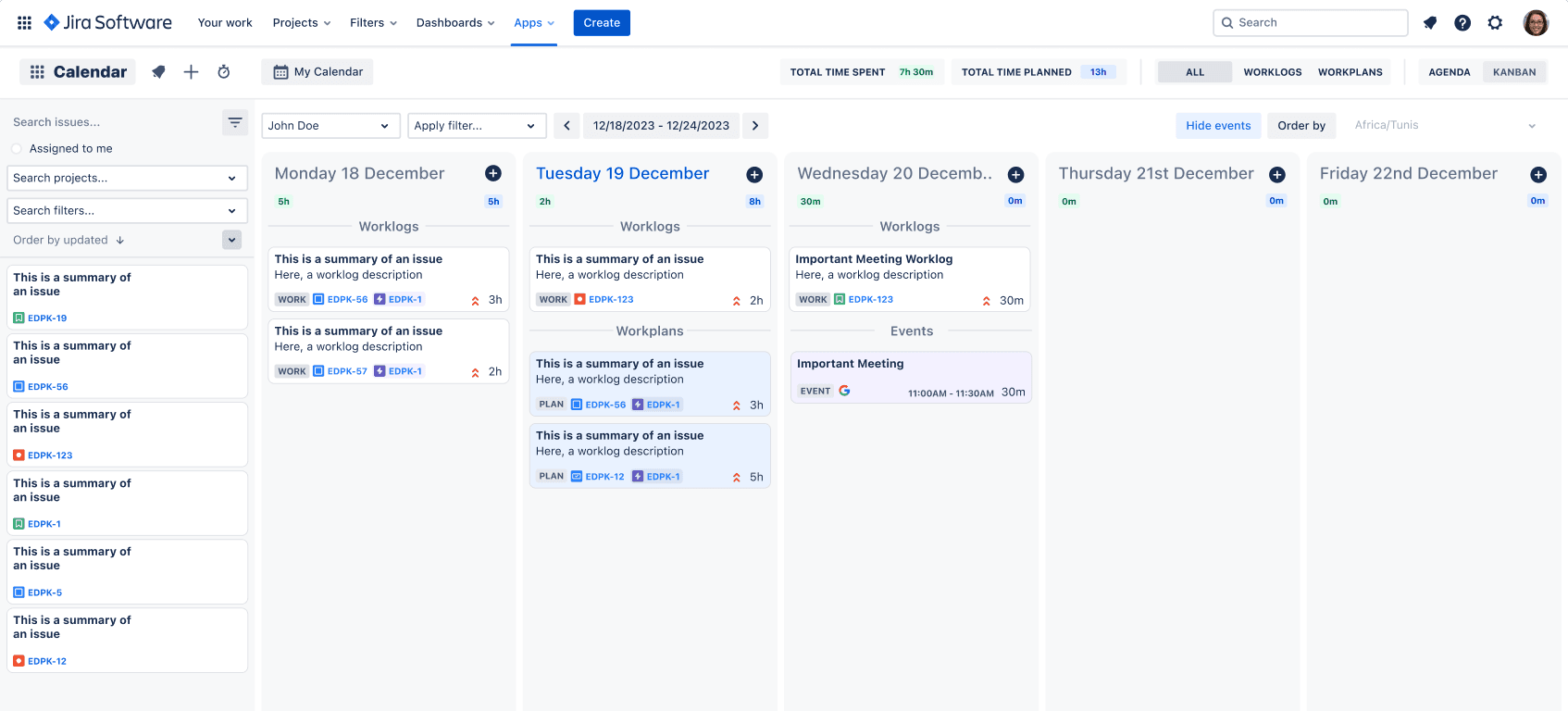
- They use Calendar sync to pull events from Google or Outlook and convert meetings into worklogs in one click.
That daily review step creates a feedback loop. People see which issues consumed their time, which in turn improves future estimates.
4. Dashboards and Reports: From Raw Data to Useful Signals
Time tracking only improves productivity if managers and teams use the data.
Build a productivity-focused Jira dashboard
Create a shared dashboard that combines Jira gadgets with Timesheet Tracking for Jira widgets. Suggested components:
- Filter Results gadget: issues with high time spent vs estimate.
- Two-dimensional filter: Time spent by Assignee vs Status.
- Timesheet Tracking reports:
* Time spent per project per week
* Billable vs non-billable breakdowns
* Worklogs by epic or component
This gives your team a single view of:
- What they're working on now.
- Where time actually goes.
- Which projects or clients consume disproportionate effort.
Use reports for concrete decisions
Reporting should lead to specific actions, for example:
- If QA tasks spend 40% of their time in
Waiting for Environment, change your deployment process. - If meetings represent 25% of a developer's week (visible via synced calendar events), tighten recurring invites.
- If a client project routinely exceeds its retainer hours, adjust scope or pricing.
Timesheet Tracking for Jira's Reports let you slice this data by:
- User or team
- Project or account
- Work attributes (billable, internal, support tier)
5. Use Calendar and Timeline Views to Improve Planning Accuracy
Most teams underestimate the impact of meetings and context switching on delivery.
Visualize all work, not just issues
With the Calendar feature:
- Sync Google or Outlook calendars into Jira.
- See meetings and time blocks side by side with Jira issues.
- Convert events into worklogs in one click.
This reveals the real weekly capacity of each person. A developer with 12 hours of meetings won't complete the same number of stories as someone with 3.
Plan by hours, not just story points
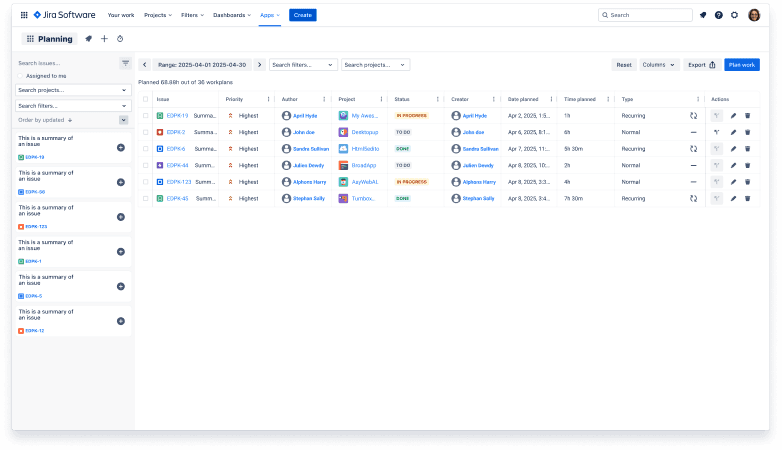
Use Timesheet Tracking for Jira's Timeline and Planning capabilities alongside Jira boards:
- Allocate hours per assignee per day based on their true capacity.
- Avoid overloading people who have recurring support duties.
- Quickly see if a sprint is overloaded on a particular day or person.
This reduces mid-sprint thrash and context switching, which directly improves team productivity.
6. Standardize Work Attributes for Better Accountability
Jira's custom fields help classify work. Timesheet Tracking for Jira adds Work Attributes on top of worklogs so you know _why_ time was spent.
Examples of useful work attributes:
- Billing type:
Billable,Non-billable,Overtime - Activity type:
Development,Code Review,QA,Meeting,Support - Client or cost center
Once configured, require attributes on worklogs. Then use the Reports feature to answer questions like:
- How much time did the team spend on support vs roadmap work last quarter?
- Which activities are driving overtime?
- Are senior engineers spending too much time in meetings?
This level of visibility improves both team productivity and stakeholder trust.
7. Put It Together: A Simple Rollout Plan
You don't need a big-bang rollout to improve productivity. A phased plan works better:
- Week 1–2: Align workflows and WIP limits. Set clear working agreements for starting/stopping the timer.
- Week 3–4: Introduce Timesheet Tracking for Jira for all developers, enable calendar sync, and agree on daily review of timesheets.
- Week 5–6: Configure key reports and a shared productivity dashboard. Start using work attributes.
- Week 7+: Review metrics in retrospectives, adjust workflows, and refine attributes.
If you want to get started, you can review features, check pricing, and see how over 15,000 teams use the app on the customers page.
This combination of Jira features and focused time tracking brings your data, process, and daily habits into alignment, which is where real gains in team productivity come from.
Ready to track time in Jira?
Start your free 30-day trial of Timesheet Tracking on the Atlassian Marketplace.