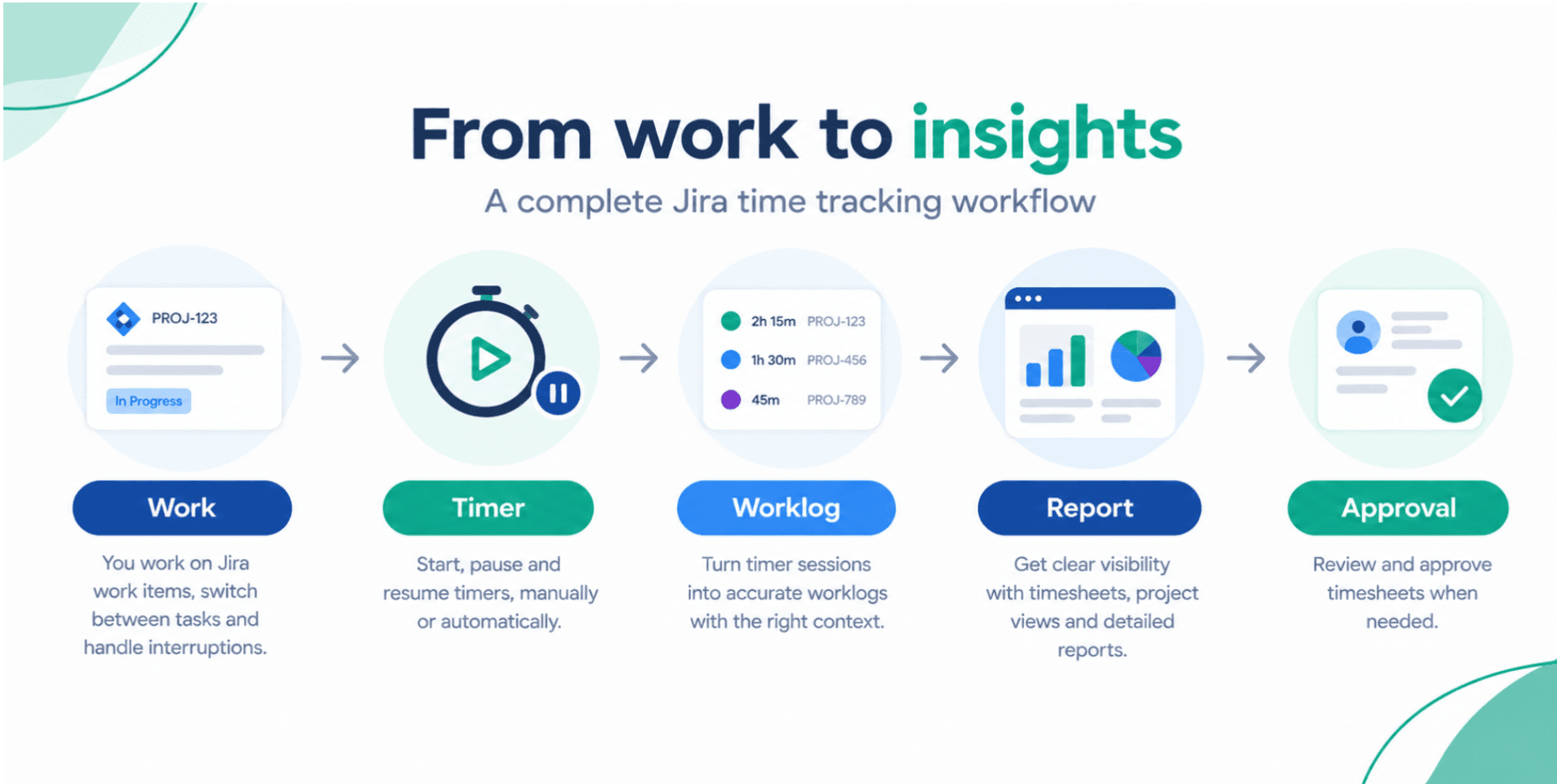
Jira Integration Done Right: Turning Timesheets into Real Reporting Power
Connecting timesheet tracking directly to Jira issues is the fastest way to fix messy reports and unreliable billable hours. This guide shows how to structure your Jira integration so timesheets feed accurate, actionable reporting without adding manual admin work.
Timesheet Tracking for Jira

Jira already knows what your team is working on. When your timesheet tracking lives in the same place, reporting stops being guesswork and starts driving decisions.
This guide focuses on how to set up Jira integration so that timesheets become a reliable reporting solution for billing, forecasting, and productivity.
1. Start with a clean Jira structure
If Jira is messy, your timesheets and reports will be too.
Before rolling out any app, sanity‑check your setup:
- Issue types – Decide which issue types are time‑trackable (e.g. Story, Task, Bug) and which should never get time (e.g. Epic, Initiative).
- Statuses – Align workflows so that work in progress (In Progress, In Review) truly represents active effort.
- Fields and labels – Standardize labels or components for things you want in reports (billable vs non‑billable, client name, team).
This structure is what Timesheet Tracking for Jira uses as the backbone of its timesheet views and reports.
2. Map work attributes to reporting needs
Generic work logs only get you total hours. That’s rarely enough for serious reporting.
Use work attributes from Timesheet Tracking for Jira to tag time with the metadata your stakeholders care about:
- Billable vs internal
- Client / project code
- Activity type (development, QA, discovery, support)
In Timesheet Tracking for Jira, you can configure work attributes so every log captures the right tags with minimal clicks. Those attributes then become filters and groupings in your reporting layer.
3. Turn Jira issues into billing‑ready data
With attributes in place, your integration can serve finance and account management, not just project leads.
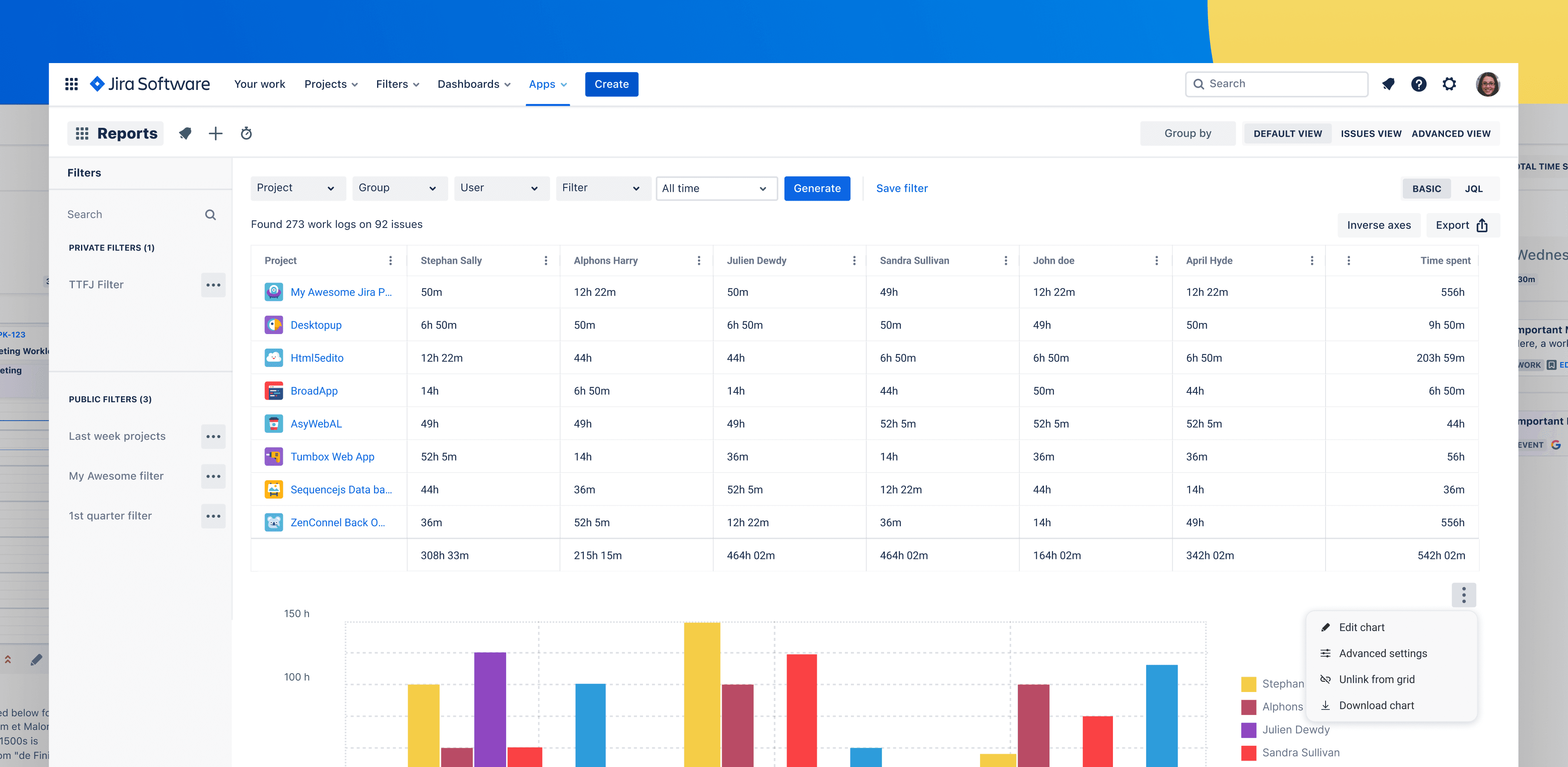
Use reporting filters to:
- Group by client and project, then break down by assignee
- Separate billable and non‑billable hours per time period
- Export summarized data that matches how you invoice
The Reports feature gives you aggregated views that line up with real invoices rather than raw work logs.
4. Use productivity tools that live where work happens
Context switching kills adoption. The more your productivity tools sit inside Jira, the more accurate your data will be.
Timesheet Tracking for Jira integrates directly into:
- Issue view (log time with attributes without leaving the ticket)
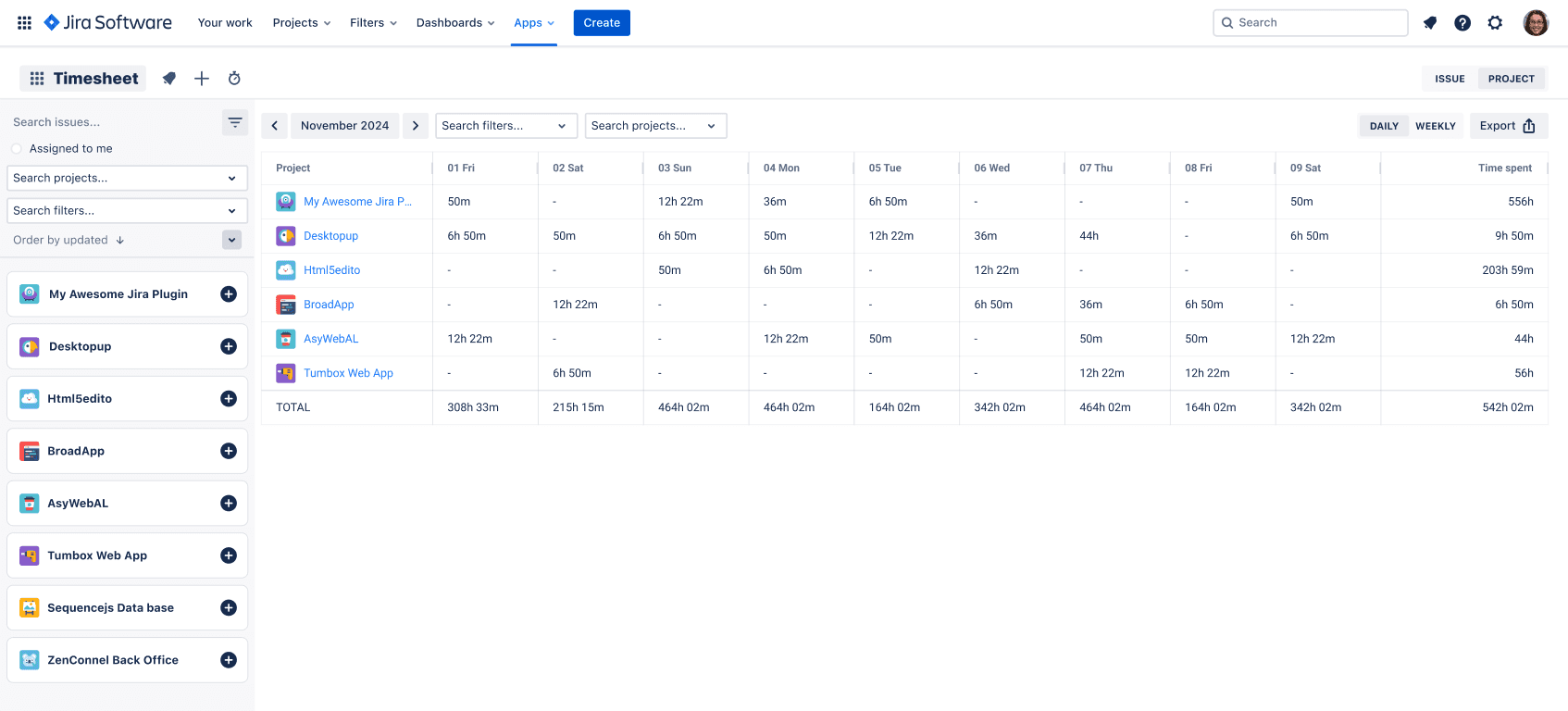
- Team Timesheets (grid view by user / project / day)
- Timer (real‑time tracking for work in progress)
Teams log time faster, and you gain the granularity needed for performance and SLA reporting.
5. Close the feedback loop with reports
Reporting shouldn’t be a monthly ritual. Make it a weekly efficiency checkpoint.
Project managers and team leads can:
- Review weekly utilization per person and per project.
- Spot under‑ or over‑allocated team members using the timeline and calendar views.
- Adjust scope, staffing, or priorities based on time trends.
Explore the app’s pricing and free trial, then pilot it with one team. Once Jira and timesheets speak the same language, your reports stop being static PDFs and start guiding everyday decisions.
Ready to track time in Jira?
Start your free 30-day trial of Timesheet Tracking on the Atlassian Marketplace.