Project Management Fundamentals in Jira: From Plan to Logged Hours
Planning and execution are only half the story in Jira-driven projects. The missing link is how you turn that plan into accurate time data, reliable reports, and billable hours your team can trust.
Timesheet Tracking for Jira

Good project management is more than a clean Jira board. The real test is whether your planning turns into reliable time data, predictable delivery, and accurate billing.
This article walks through the fundamentals from planning to execution, with a focus on how Timesheet Tracking for Jira helps you keep your schedule, scope, and timesheets aligned.
1. Plan work so it can be tracked
If work isn’t structured clearly, your timesheets won’t be either. Before a sprint or milestone starts:
- Break work into trackable issues: Stories/tasks should be small enough that logging time against them is meaningful (think hours or a couple of days, not weeks).
- Use components, labels, and work attributes: Combine Jira fields with work attributes (e.g. "Billable", "Client", "Activity type") to enable filtered timesheets and client-ready reports.
- Estimate with time in mind: Whether you use story points or hours, decide how you’ll compare estimates with actuals from your timesheets.
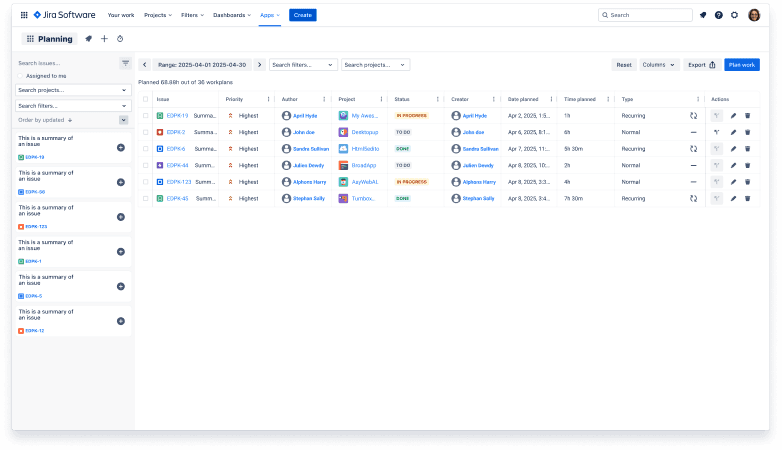
A clear plan makes it obvious where time should be logged and which work is billable.
2. Execution: Turn work in progress into live time data
During execution, the challenge is capturing effort while people work, not days later.
- Use timers instead of memory: With the timer in Timesheet Tracking for Jira, users start and stop work directly from the issue, reducing “I think it was 3 hours” guesses.
- Automate where possible: Features like the auto-timer help track active work on sprint tasks with minimal user input.
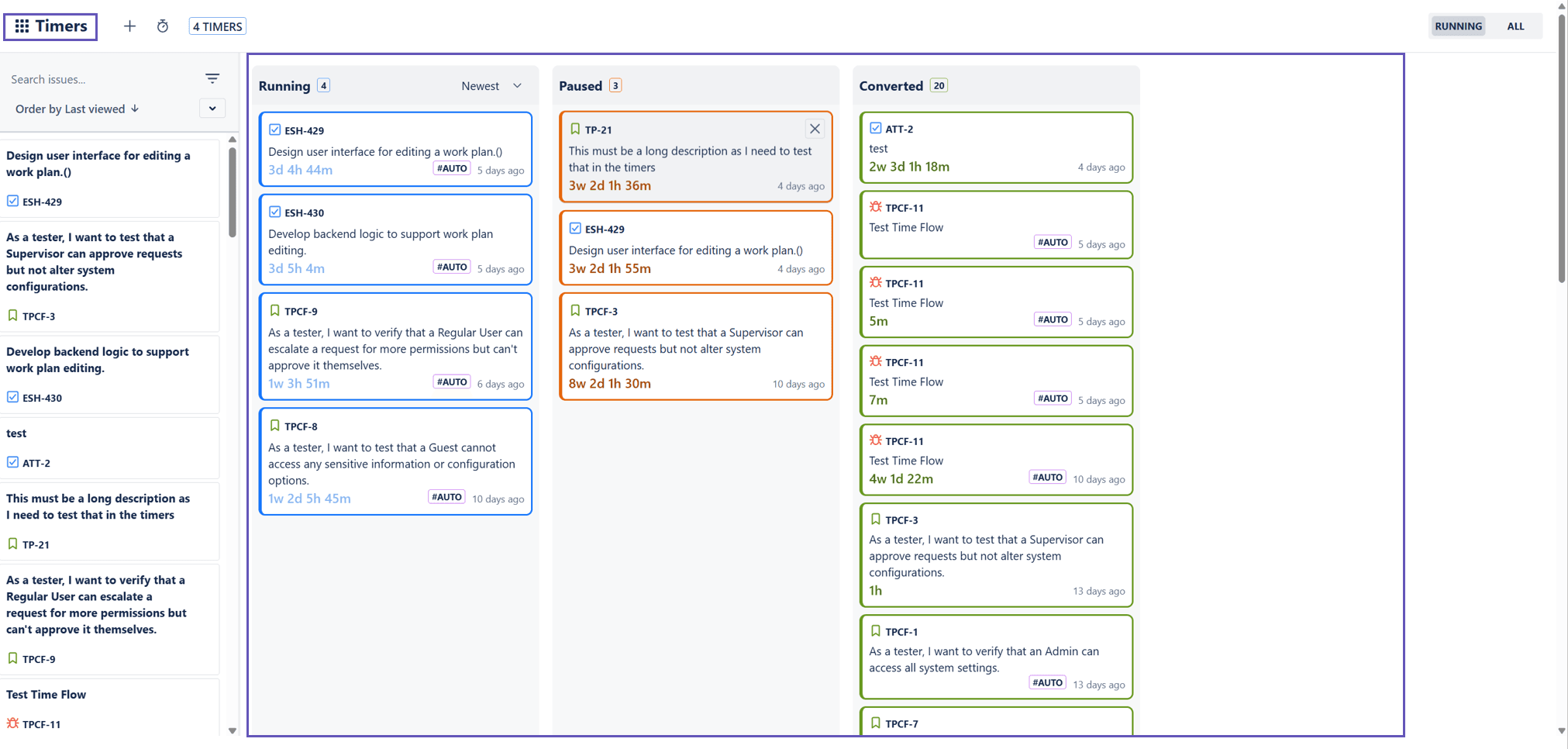
- Respect different workflows: Some teams log at the end of the day, others as they go. The calendar and timeline views make both workflows workable and visible.
3. Timesheets as the single source of truth
Once time is logged, your timesheet view becomes the operational reality of the project.
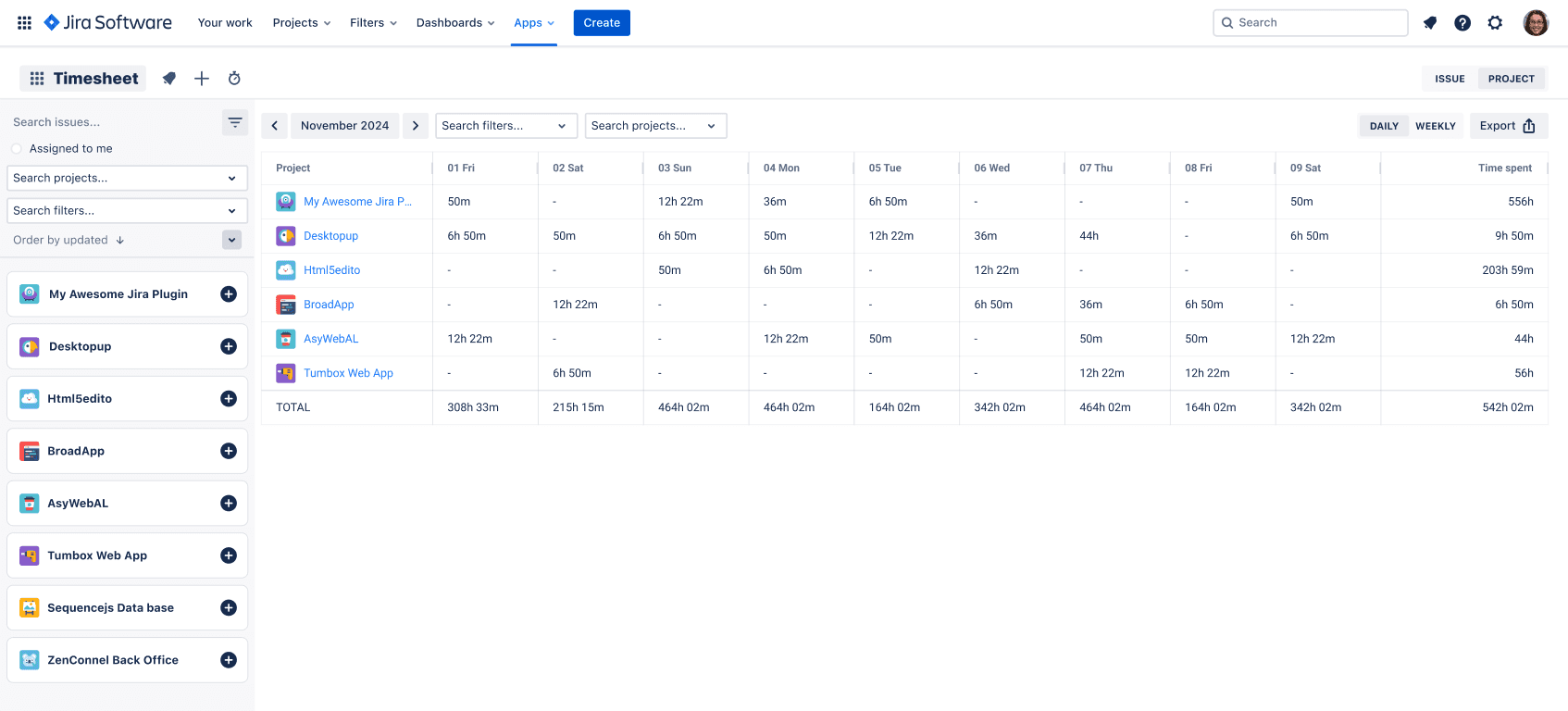
Use the timesheets feature to:
- Check that all active team members have logged time for the sprint or billing period.
- Quickly scan for outliers (e.g. a 14-hour day or missing entries on a critical task).
- Compare logged hours per epic, component, or client-specific label.
This is where project managers spot early signals of scope creep, under-estimation, or bottlenecks.
4. Reporting: Close the loop between plan and execution
Fundamental project management means learning from each iteration. The reporting features in Timesheet Tracking for Jira connect estimates, logged hours, and billing:
- Estimate vs. actual per epic, sprint, or release.
- Billable vs. non-billable time per client or project.
- Utilization and capacity across your team for better resource planning.
Armed with these reports, you refine planning, adjust workloads, and send invoices that match reality, not guesswork. That’s the full loop: plan, execute, log, report.
For pricing details or to try this workflow in your own Jira, see the pricing page and start a 30-day free trial.
Ready to track time in Jira?
Start your free 30-day trial of Timesheet Tracking on the Atlassian Marketplace.